
Appointments
Prior to entering appointments, you must setup your Appointment Types by clicking on the Appt Types tile.
Once you have entered all of your appointment types you must then enter default appointment start and end times for each of the Users that you wish to be included on the Appointment Book. Click on the Users tile on the main menu to update user information.

Open each user, click on the Appointments tab and enter their default start & end times and default appointment type times. Also ensure that under the General tab that the “[ ] Include on Appointment Book” option is ticked. You can now enter appointments in the appointment book by clicking on the Appointment tile on the Main Menu.

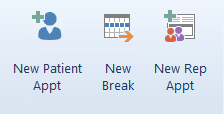
To add a new Patient Appointment, either double-click on the appointment cell or highlight the cell and click the New Patient Appt button in the top toolbar. Note that the system will prompt you to enter a Recall when saving a new Appointment where that patients Recall has not been updated today. Click here to view the Patient Recall process.
To add a break, click the New Break button and to add a Sales Representative Appointment click the New Rep Appt button.
To amend the schedule for an optometrist for a given day, click on the Change Schedule button at the far right of the status toolbar. This allows you to amend the start/finish time for an optometrist for a given or day or completely Inactivate them for that day.

You can manually apply a status to an appointment cell by clicking on the appointment then clicking on one of the buttons below.

- Tick = Confirmed.
- Clock = Waiting Room.
- Red/Blue = Pre-Test.
- Blue/Green = Consulting.
- Dropper = Dilating.
- Door = Complete.
- Red Dash = Cancelled
- Cross = No Show.
- Arrow = Reset.
Optomate will automatically assign certain statues, including:


You can edit a current appointments Patient, Start/Finish time or Notes, by double-clicking on the appointment cell. You can also move an appointment cell by clicking and holding down the mouse button while dragging that appointment cell.