
Orders
Optomate Touch allows you to enter Spectacle Lens, Contact Lens, and Repair Orders.
To enter a new order, open or highlight a patient record, then click on the “Spectacle Lens Order,” “Contact Lens Order,” or “Repair” buttons on the top toolbar.

To view previously entered orders, open a patient record and click on the Orders or Repairs tab. The number in brackets on these tabs indicates the number of corresponding historical records.

You can also view current Orders by clicking on the Orders tile from the Main Menu.
Orders will display in various colors to denote their status. Red takes precedence over purple, and purple takes precedence over yellow.
Red = Cancelled
Purple = Warranty
Yellow = Own Frame
Order status is derived from the population of order dates below:
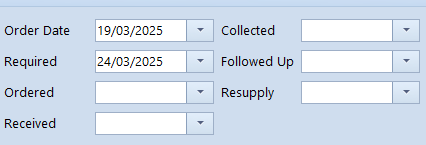
Order Date. This is the date the order was entered. It is populated with today's date by default.
Required. The date by which the practice requires the order. This is calculated using the lens "Days at Lab" value.
Ordered. The date the order was sent to the lab. This field is automatically populated when sending an electronic order to a lab.
Received. The date the order was received back at the practice.
Collected. The date the patient collected the order. The system will prompt you to update the collection date when processing a patient receipt.
Followed Up. When using the Email, SMS, or Telephone follow-up functions, this date will be updated when you send the follow-up.
Resupply. This only applies to contact lens orders. This date will automatically populate based on the contact lenses ordered date, provided the lens includes a 'Days Usage in Box' value in setup.
Order Statuses are formulated as follows:
Unordered. The order does not contain an ordered date.
Ordered. The order contains an ordered date.
Outstanding.The ordered date is populated and received date is empty.
Overdue.The ordered data is populated and received date is empty and today's date > required date.
Uncollected. The received date is populated and collected date is empty.
Collected. The collected date is populated
Cancelled. The cancelled check-box on the order screen is ticked.
Note that when entering a new Spectacle or Contact Lens order, the system will automatically link the last entered Rx for that patient. You can change the selected Rx when in the order screen by clicking on the “Select Rx” button next to the Rx.