
Recalls
You can pre-define your Patient Recalls by clicking the Recalls tile under Setup from the Main Menu.
You can define the period of time prior to the initial recall being sent and optionally the the time period between subsequent recalls. The period you apply to subsequent recalls equates to the number of months from the previous recall. Note that once a recall has been assigned to a patient record the recall period parameters cannot be changed.
From the Main Menu under Setup, click System Setting, then the Settings tab. Here you will see 2 options related to Recalls.

If you tick the “[ ] When applying a new Recall automatically delete Previous Unsent Recalls” option, the system will automatically remove previously unsent recalls prior to adding a new recall. You can also suppress the option to prompt to Update Recalls when booking Appointments.
You can apply a new recall to a patient from the patient record, under the Recalls tab or from the Exam screen. The system will also prompt you to enter a recall when 1. Invoicing a consultation item, 2. Adding a new appointment (if you have not chosen to suppress this option in System Settings) and 3. After saving a new Exam record if you have entered default recalls in Exam Types. If a recall has already been entered today then the system will not prompt again.
To send Patient Recalls click on the Recalls tile on the Main Menu under Patients.

This will take you to a Wizard that will step you through creating your Recall Run and sending via Letter, Email & SMS or exporting the Recall List to XLSX format. Note that patient with a future appointment will be excluded from the Recall Run.
Also note that if you expose particular recall types via the API eg. SMS, then that type will be disabled in the final page of the Recall Wizard. This ensures that you do not double-up when sending recalls.
Recall Success
The Recall Success Report identifies individual patients who were sent a recall contact in a given month and considers it a success if the patient has returned within a chosen period and had a consultation item invoiced.
Note that you can set the time period you consider a recall to be successful in System Settings (see below). A value of zero defaults to 6 months.
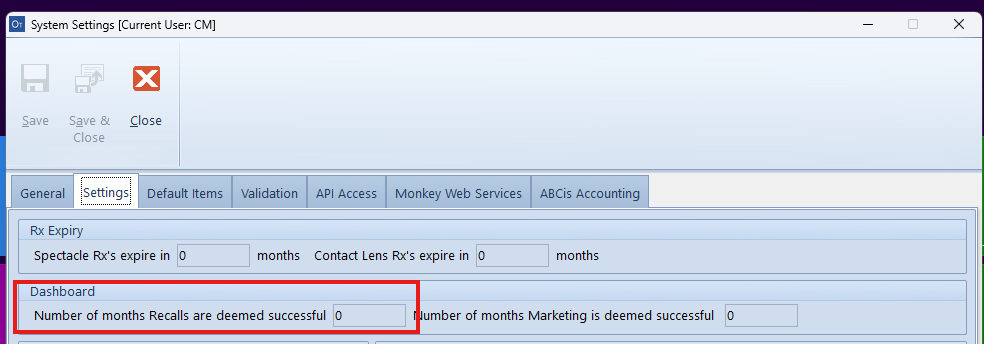
Whereas, the Management KPI Report provides a high-level recall success rate based on past data. For any date range you select for the KPI Report, Optomate will gather attendance data from the previous 6 months (unless a different period is specified in System Settings) and reflect the success rate at that point in time.